





Editing text inside an image may seem like a difficult task, especially when you want the replacement text to look exactly like the original. Whether you are updating a marketing banner, correcting a typo, translating content, or modifying a social media graphic, maintaining the same font is essential for a professional appearance.
Many people struggle because they cannot identify the font used in the image. Even when they find a similar font, differences in spacing, size, color, or alignment can make the edited section stand out. Fortunately, modern tools and techniques make it much easier to achieve accurate results.
Understanding how fonts behave within an image is the first step toward successful editing. Every font has unique characteristics such as letter shape, thickness, spacing, and style. Matching these elements helps create a seamless final design.
Today, there are numerous solutions available for font recognition and image editing. Professional designers often use Adobe Photoshop, while beginners can rely on online tools and AI-powered font detectors. Both approaches can produce excellent results when used correctly.
This guide explains everything you need to know about how to edit text in image with same font. By following these methods, you can edit image text confidently and achieve results that look natural and professional.
Understanding How Fonts Work in Images
Identifying Fonts
Before replacing text, you need to determine which font was originally used. Font identification is often the most important step because even small differences can affect the overall appearance.
Popular font identification methods include:
- Uploading the image to font recognition websites
- Comparing letter shapes manually
- Checking brand style guidelines
- Using AI-powered font matching tools
When examining a font, pay attention to:
- Letter width
- Character spacing
- Font weight
- Serif or sans-serif style
- Capitalization patterns
Font Recognition Tools
Several tools can help identify fonts quickly:
- WhatTheFont
- Font Matcherator
- Adobe Fonts Visual Search
- What Font Is
- Fontspring Matcherator
These platforms analyze uploaded images and suggest similar fonts based on visual patterns.
Matching Font Characteristics
Even if you cannot find the exact font, matching these characteristics helps create a convincing replacement:
- Font size
- Text color
- Line height
- Letter spacing
- Shadow effects
- Outline styles
A close visual match often looks identical to most viewers.
Preparing the Image for Text Editing
Cleaning the Original Text Area
Before adding new text, remove the existing text carefully. The goal is to recreate the background behind the text so the replacement appears natural.
Common removal methods include:
- Content-Aware Fill
- Clone Stamp Tool
- Healing Brush
- Background Reconstruction
- AI Object Removal Tools
The cleaner the background, the better the final result.
Improving Image Quality
Low-resolution images create editing challenges. Improving image quality before editing can make font matching easier.
Consider these improvements:
- Increase image resolution
- Reduce noise
- Sharpen edges
- Enhance contrast
- Correct color balance
Clear images provide more accurate font detection results.
Essential Editing Tools
The following tools are commonly used for image text editing:
Professional Tools
- Adobe Photoshop
- Adobe Illustrator
- Affinity Photo
Free Tools
- GIMP
- Photopea
- Canva
- Pixlr
AI Tools
- Cleanup Pictures
- Remove.bg
- Generative Fill Applications
Choosing the right tool depends on your skill level and project requirements.
How to Edit Text in Image With Same Font
Step-by-Step Process
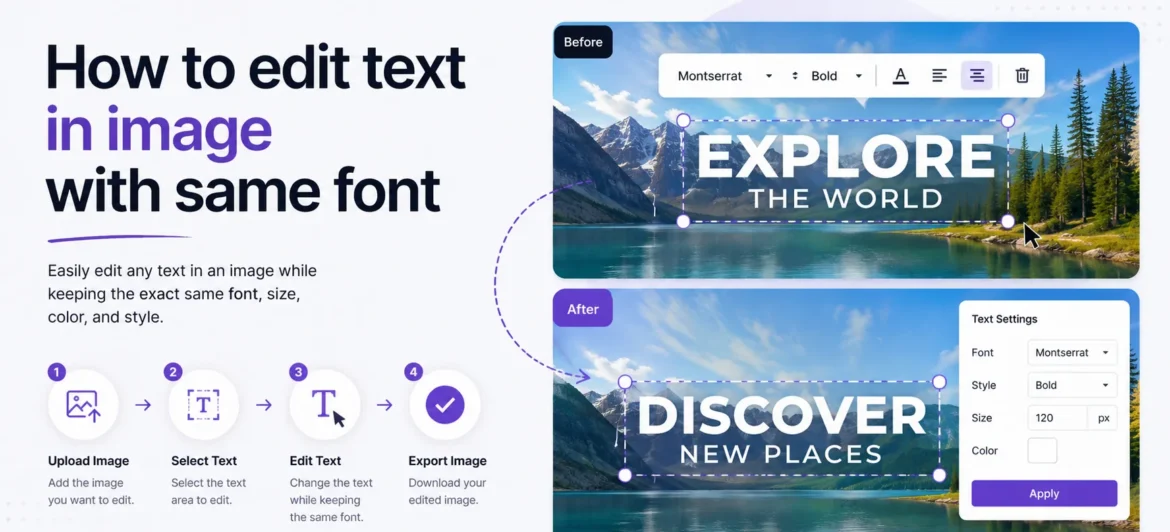
Follow this process to achieve the best results:
- Upload the image.
- Identify the original font.
- Remove existing text.
- Recreate the background.
- Add new text using the matching font.
- Adjust spacing and alignment.
- Match colors and effects.
- Export the final image.
This workflow minimizes visible editing marks.
Using Photoshop
Photoshop remains one of the most powerful solutions for text editing.
Step 1: Open the image.
Step 2: Remove old text using Content-Aware Fill.
Step 3: Identify the font using Match Font.
Step 4: Create a new text layer.
Step 5: Enter replacement text.
Step 6: Adjust:
- Font size
- Color
- Tracking
- Leading
- Effects
Step 7: Blend the text naturally into the design.
Using Free Online Tools
If you do not have Photoshop, free alternatives can still deliver good results.
Popular options include:
- Photopea
- Canva
- Pixlr
- Fotor
These tools allow users to:
- Upload images
- Remove text
- Add new text layers
- Apply matching fonts
- Export edited graphics
For simple projects, online editors may be sufficient.
Common Mistakes to Avoid
Many beginners make these errors:
- Choosing a similar but incorrect font
- Ignoring text alignment
- Using mismatched colors
- Forgetting shadow effects
- Editing low-quality images
Avoiding these mistakes helps maintain a professional appearance.
Quality Checks
Before finalizing your image, review:
- Font consistency
- Color accuracy
- Background blending
- Alignment
- Image resolution
A final inspection often reveals small issues that can be corrected easily.
Advanced Techniques for Perfect Font Matching
Using AI Font Detection
Artificial intelligence has improved font identification dramatically.
Modern AI tools can:
- Detect fonts automatically
- Suggest alternatives
- Analyze spacing patterns
- Recommend design adjustments
This reduces manual effort and improves accuracy.
Recreating Missing Fonts
Sometimes the original font is unavailable. In these cases, designers recreate the appearance manually.
Methods include:
- Adjusting character spacing
- Modifying letter shapes
- Applying custom effects
- Combining multiple fonts
These techniques help replicate unique typography styles.
Maintaining Design Consistency
Consistency is essential when editing image text.
Maintain the following elements:
- Font style
- Font weight
- Color palette
- Alignment
- Visual hierarchy
- Branding standards
Consistent design ensures the edited image remains visually coherent.
Conclusion
Learning how to edit text in image with same font is an essential skill for designers, marketers, content creators, and business owners. The key to success lies in accurately identifying the original font, carefully removing existing text, and matching every detail of the replacement text, including size, spacing, color, and effects.
Whether you use Photoshop, free online editors, or AI-powered tools, the process becomes much easier when you follow a structured workflow. With practice, you can create seamless edits that look as though the original text was never changed.
By applying the techniques outlined in this guide, you can confidently edit text in images while preserving the original design quality and professional appearance.
FAQs
1. What is the easiest way to identify a font in an image?
The easiest method is using font recognition tools such as WhatTheFont, Font Matcherator, or Adobe Fonts Visual Search.
2. Can I edit text in an image without Photoshop?
Yes. Free tools like Photopea, GIMP, Canva, and Pixlr can help you edit image text effectively.
3. How do I remove text from an image cleanly?
Use Content-Aware Fill, Clone Stamp, Healing Brush, or AI background reconstruction tools to recreate the original background.
4. What if I cannot find the exact font?
Choose the closest match and adjust size, spacing, weight, and styling to replicate the original appearance.
5. Are AI tools useful for font matching?
Yes. AI-powered font detection tools can quickly identify fonts and suggest highly accurate alternatives.
6. Why does my edited text look different from the original?
Differences usually come from font size, spacing, color, alignment, or effects such as shadows and outlines. Matching these details carefully improves results.